

Security Patch Breaks Hundreds of Legitimate PDF Workflows
Don't worry. I'm all over it.


When Adobe joined the rest of the software world and moved to a subscription model, the upside of renting the software for the rest of your life was that you would always have the latest version. Not only would you have the latest improvements, but you would also have the latest “improvements”.

The default setting is to install updates automatically . I learned my lesson a long time ago about leaving this setting. There was the one day when my anti-virus software was popping a very scary virus message whenever I would apply a dynamic stamp to a document. The message was one thing, but it was also removing the stamp files and putting them into the security vault. I definitely thought I had a virus. A quick web search showed that many people were having this issue which started that day, and they were working on it. It was fixed by the end of the day but the workflow disruption was immense.
Full disclosure: I’m pretty sure the issue described above had to with an Adobe update but it was long time ago. It’s possible that it was an anti-virus software issue.
Nevertheless, there’s more. There have been several bugs and issues that were introduced during updates, and took a long time to fix. We’re talking days or even weeks here. I’d rather control my updates and wait until the other canaries have flown into the coal mine. But wait, there’s more.

It would be great if the updater knocked on my office door and politely asked if it was a good time for me to NOT be able to do any work for the next ten minutes or so, instead of kicking down my door and taking over my computer. There was no warning whatsoever. It always seemed to happen at the worse possible time, like during a rapidfire-keyboard-smashing deadline race, or during an online presentation for paying customers. The update starts without warning and all you can do is wait until it’s finished.
Disable This Setting
If you don’t want to go through any of this and prefer to do updates on your own time, press Ctrl + k to open the preferences window, find the Updater category at the bottom of the list, and unselect the automatic updates box.
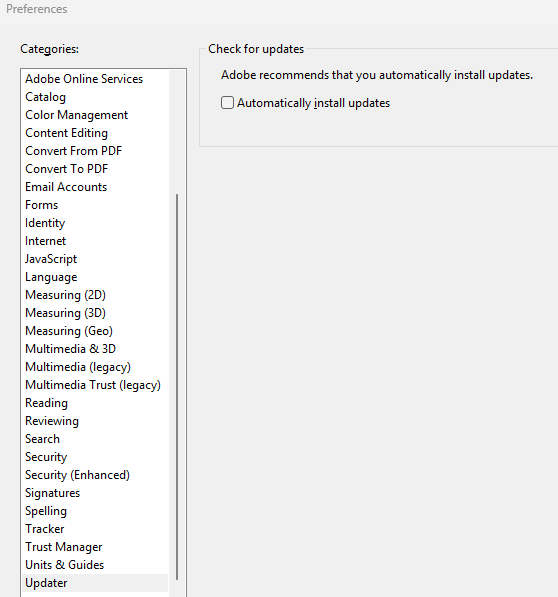
The thing is, in this case, the settings above didn’t matter.
Special Stamp Features
For at least a decade I’ve been developing dynamic stamps with scripts that manipulate the stamp after it has been placed on the document. For example:
Resizing the stamp
Repositioning the stamp
Locking the stamp
Copying the stamp to other pages
Flattening the stamp
Setting the opacity of the stamp
If you ask the forums how to accomplish any of the tasks listed above with a stamp script, you will be told something like “These procedures are not possible. Once the stamp is placed it is a static image and the stamp script ends.” I figured out a way to do all this and much more.
Another creation of mine is an automation system that I use daily. It starts with a large multi-page PDF file that was created by feeding a stack of paper into our scanner tray. The pages are then automatically split out into smaller files and named according to their content. The first step, however, is to apply a dynamic stamp to the last page of where the splits will occur. For example, if you have fifteen pages to split into 4 files (in order: 5 pages, 4 pages, 4 pages, and 2 pages) you would apply the stamp to pages 5, 9, 13, and 15. It’s always the last page of the series. Stamping can be done quickly by leaving Keep tool selected on so you don’t have to go back to the menu to reactivate the stamp each time.
The stamp pops a dialog window containing a text field for keying in part of the file name, a dropdown with selections for common pieces of the file name, and a check box to add the current date to the file name. After the stamp is applied it is moved to the top of the page in the center. Another thing that happens is the stamp’s name is change from a random string of characters to the file name that was created and stamped on the page. Once stamping is completed and a custom toolbar button is clicked, it removes all the stamps, the file splits into smaller files, which are named properly, and the original file closes.
If the description of this automation sounds intriguing to you, or gives you an idea for any type of PDF automation, I encourage you to reach out to me so that I can provide you with quote for custom work from your detailed description.
They Broke My Tools
About two weeks ago the stamp positioning and naming features stopped working for the stamp. Nothing had changed in the files, the scripts, or the software, as far as I could tell. I had a colleague test it with a very old version of Acrobat and it work without issue. I was getting no errors in the console. It just wasn’t working any more.

I used my usual troubleshooting techniques and modified the script to write something to the console and pop an alert just before the non-working script fired. Neither of these scripts showed any results. I then tested one of my number incrementing stamps with different size settings.
The stamp worked but not the size settings (the settings change the size from the default after the stamp is applied - go to 1:10 in the video above). I was starting to see a pattern here. Anything that modified the stamp after placing it was not working. As I was troubleshooting I noticed that the features would work sporadically. I thought this may have been from sloppy code so I cleaned it up. That didn’t fix the problem.
My research led me to an answer that I needed to execute a trusted function in a folder level script from the stamp script. I knew that wouldn’t work because I tried a stamp with a trusted function (the aforementioned number incrementing stamps) and they didn’t work either, but had worked for at least 5 years. Here’s a short summary of what I found, and a workaround:
Adobe's April 2026 emergency patch for CVE-2026-34621 was pushed out in
update (APSB26-43, April 13 2026), which broke a core API.
Even though I have automatic updates disabled, Adobe seemed to have forced it through due to the seriousness of a real, documented attack (CISA mandated federal agencies patch by April 27 ).
Specific code I use in my stamp files will not execute, even if wrapped in a trusted function in a folder-level script.

As a workaround, the code will execute if the stamp file is open.
If you notice any functionality failing recently in stamps I have developed for you, don’t hesitate to reach out.
The Good News
For now there’s an easy workaround. Simply open the stamp file from the stamps folder before using the stamp. I suggest creating a shortcut to the stamps folder on your desktop. A more complicated, but user-friendly solution is to create a one-click toolbar button that opens the stamp file. You can even make the button toggle the file open and closed.
I have already developed a script that brings back the functionality for my stamps. I’m in the process of modifying the files, especially for our biggest seller, the automatic number incrementing stamps, and providing a download fix for existing customers. I’m hoping that this new method doesn’t get turned off because of nefarious characters exploiting vulnerabilities.